> ## Documentation Index
> Fetch the complete documentation index at: https://docs.amps.ai/llms.txt
> Use this file to discover all available pages before exploring further.
# Link UI
> Send end users to a hosted page to connect their devices, then find those devices through the API.
Link UI is a hosted page where your end users sign in to their device manufacturer and choose which devices to share with you. You send them a URL; they come back to your app with their devices linked.
## Build the URL
Each Link UI app has an `appId`. Create one in the [dashboard](https://app.amps.ai) under **Link UI**, which also shows the app's URL.
```
https://auth.amps.ai/{appId}?externalUserRef=user_8841
```
| Parameter | |
| - | - |
| `externalUserRef` | Your ID for this end user. Up to 100 characters: letters, digits, and `.` `_` `+` `-` `@`. Other characters make Link UI generate a random ID instead. |
| `sandbox` | `true` to link sandbox devices. Omit for live. |
Live links only work once your account is enabled for live. An out-of-range value in any parameter makes Link UI ignore all of them, including `sandbox`, so validate them before you build the URL. [Customization](/guides/link-ui/customization) covers the parameters that shape the flow.
## What the end user does
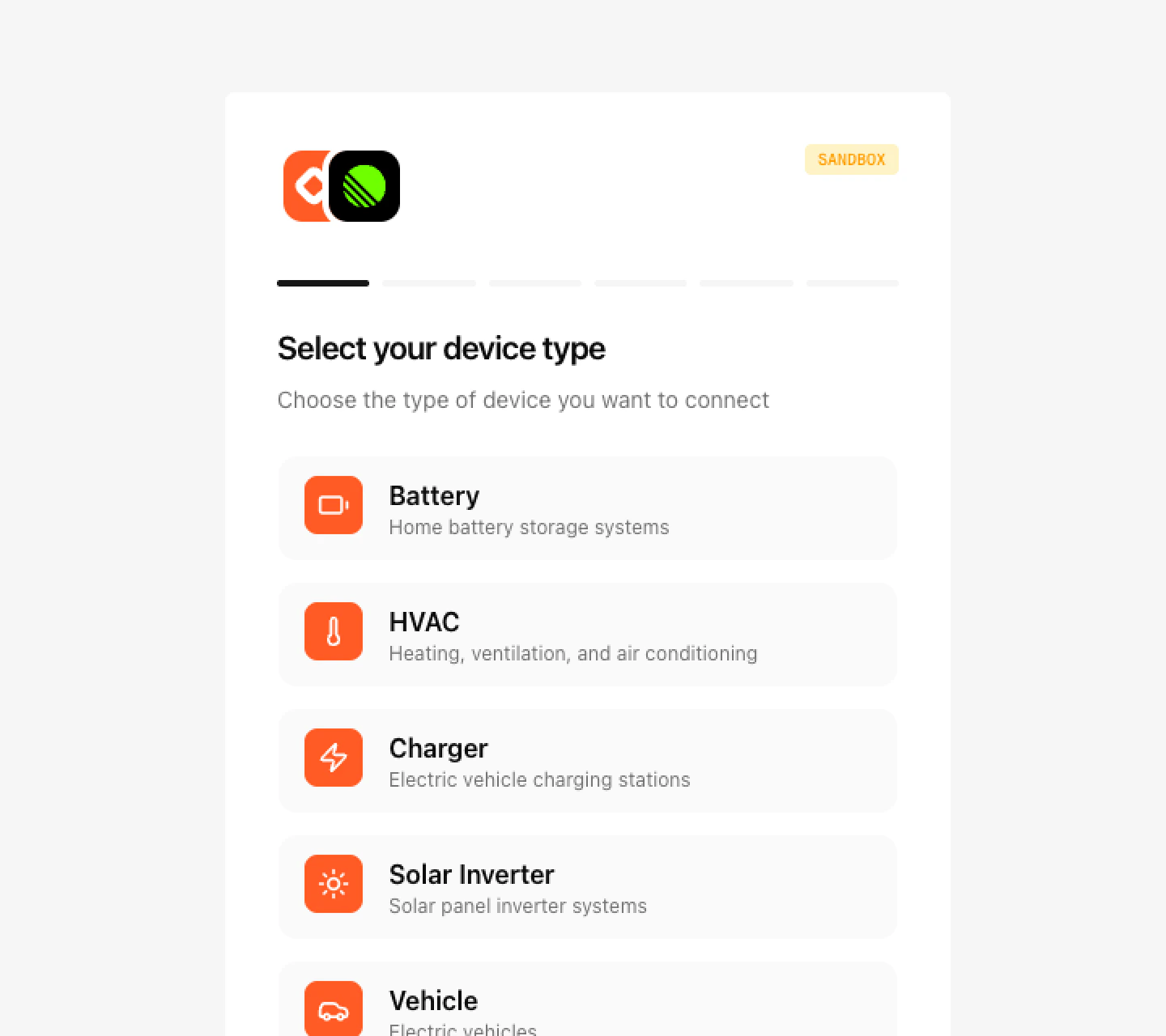
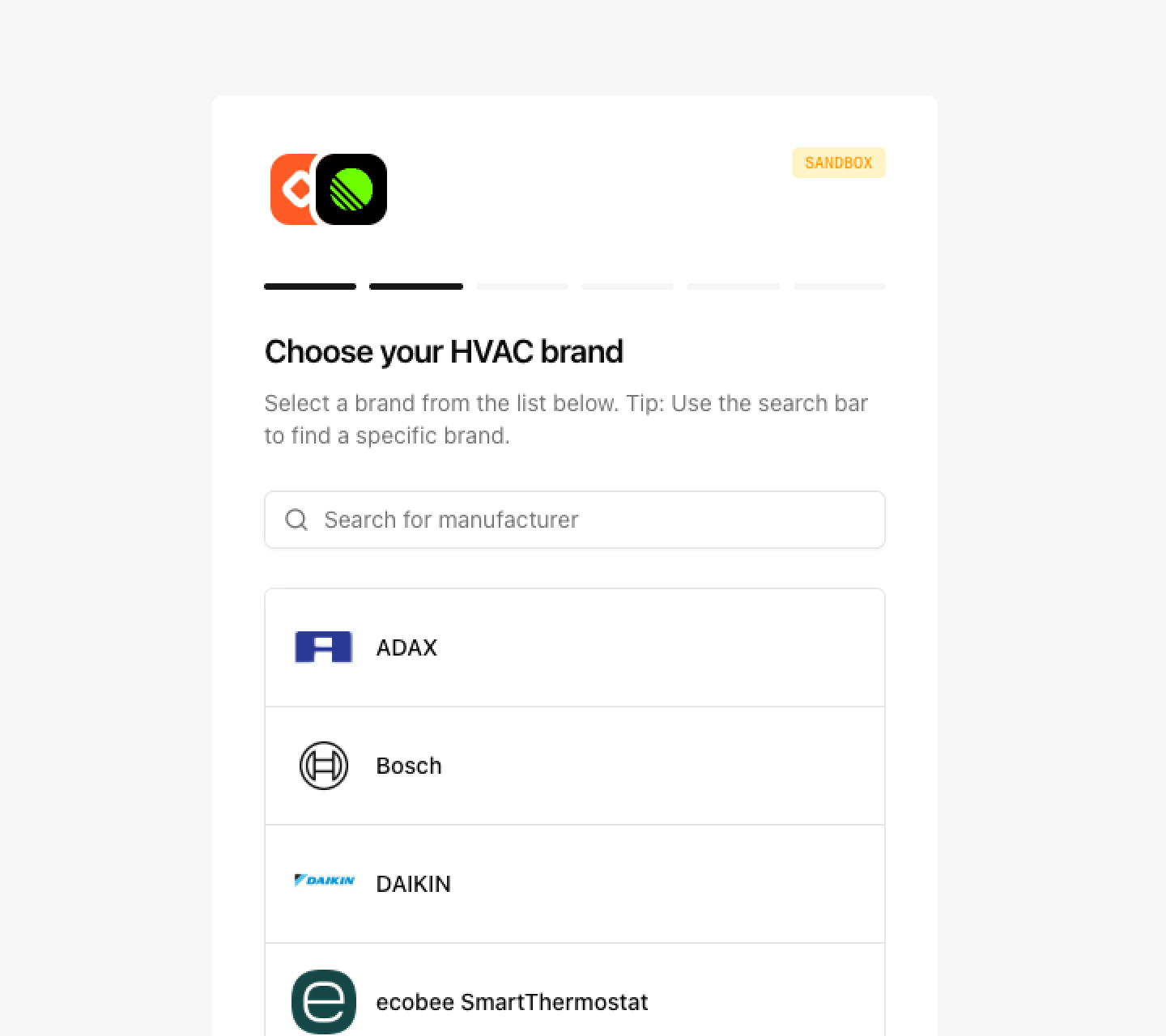 On Link UI, on the manufacturer's own page, or by entering details printed on the device. Completes MFA if asked. Link UI fills in the device's time zone from the browser, and the user can correct it.
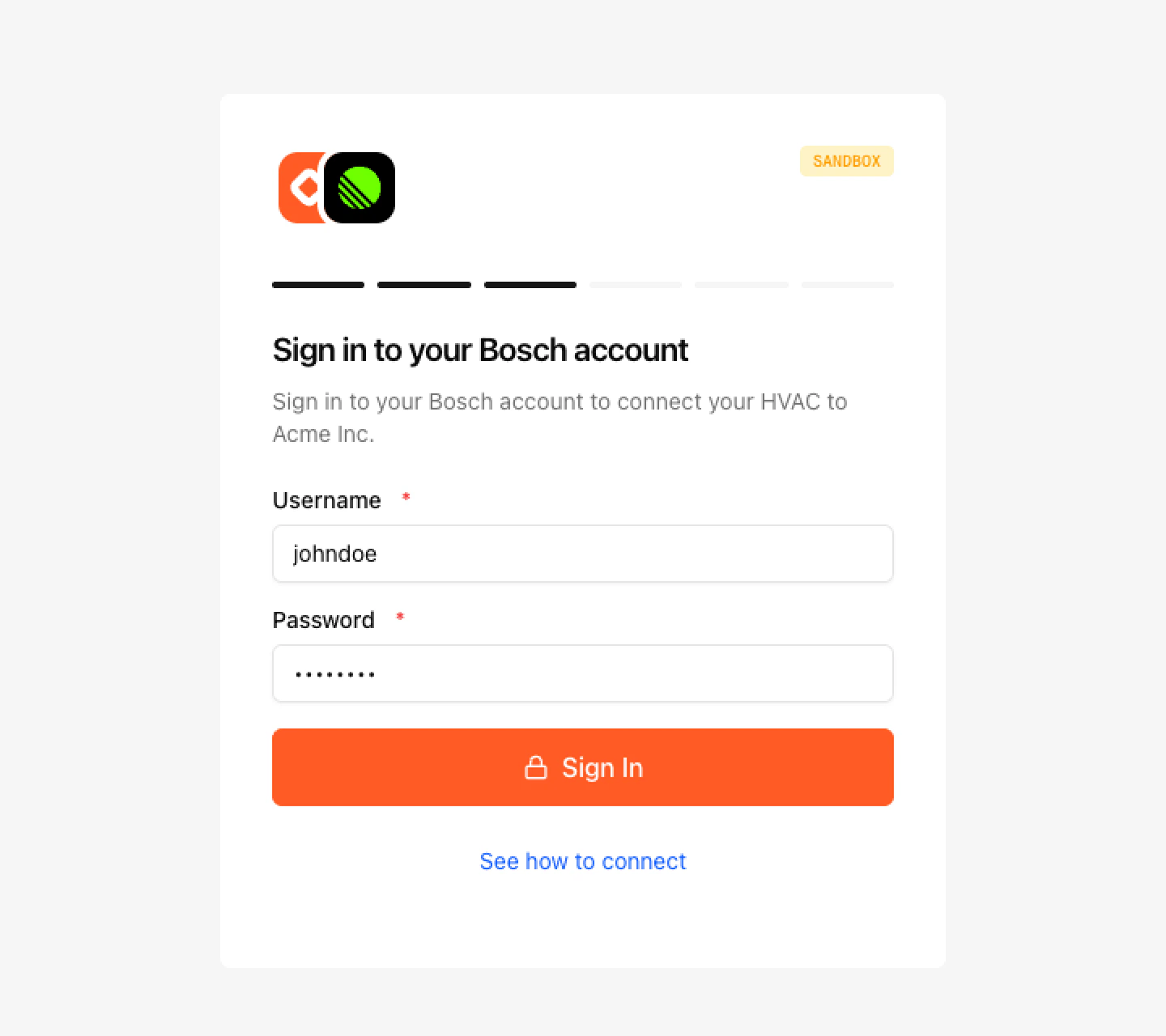 Clicking **Return to** sends them to your app's redirect URL.
The redirect carries no parameters. Listen for the `device.connected` [webhook](/guides/webhooks/events), or list the user's devices.
## Find a user's devices
The `externalUserRef` you passed is the user's `userId` in the API. Filter any device list by it.
```bash theme={null}
curl "https://api.amps.ai/battery?userId=user_8841" \
-H "x-api-key: $AMPS_API_KEY"
```
If you omit `externalUserRef`, Link UI generates a random ID that you have no way to read back. Always pass your own.
## Sandbox
Create the app with the dashboard switched to sandbox. Its URL includes `sandbox=true`. For manufacturers that use a username and password or an API key, any value is accepted and the account has two devices. Manufacturers that sign in on their own page approve automatically. To test failures, enter a value starting with `error`, or the MFA code `000000`.
```
https://auth.amps.ai/{appId}?sandbox=true&externalUserRef=test_user_1
```
Devices linked this way are visible to your `sk_test_` key.
## Reconnect
When a manufacturer stops accepting a user's credentials, you get a `device.disconnected` webhook with a `reconnectionUrl`. Add `externalUserRef` with the user's ID to that URL, then send the user there. They sign in again, their devices keep the same IDs, and you get `device.reconnected`.
```
{reconnectionUrl}&externalUserRef=user_8841
```
Without it, Link UI can't match the devices to the user. After reconnecting, Link UI sends the user to your app's reconnect redirect URL.
## Revoke consent
When a user disconnects in your app, revoke their consent. Omit `deviceIds` to revoke every device the user linked.
```bash theme={null}
curl -X DELETE https://api.amps.ai/users/user_8841/consent \
-H "x-api-key: $AMPS_API_KEY" \
-H "Content-Type: application/json" \
-d '{ "deviceIds": ["device_abc123"] }'
```
```json theme={null}
{
"success": true,
"data": {
"userId": "user_8841",
"revokedDeviceCount": 1,
"revokedDeviceIds": ["device_abc123"]
}
}
```
When no other link uses the device, and the manufacturer supports it, Amps also hands the device back to its owner at the manufacturer. If that step fails, the request fails and nothing is revoked.
Requests for a revoked device return `403 CONSENT_REVOKED`. A `userId` with no matching devices returns `404 NOT_FOUND`. The user can grant access again by linking the device through Link UI with the same `externalUserRef`.
## Next steps
Your name, logo, manufacturers, and flow options.
Get notified when devices connect or disconnect.
Read the state of a linked device.
This documentation is built and hosted on [Mintlify](https://mintlify.com), a developer documentation platform.
Clicking **Return to** sends them to your app's redirect URL.
The redirect carries no parameters. Listen for the `device.connected` [webhook](/guides/webhooks/events), or list the user's devices.
## Find a user's devices
The `externalUserRef` you passed is the user's `userId` in the API. Filter any device list by it.
```bash theme={null}
curl "https://api.amps.ai/battery?userId=user_8841" \
-H "x-api-key: $AMPS_API_KEY"
```
If you omit `externalUserRef`, Link UI generates a random ID that you have no way to read back. Always pass your own.
## Sandbox
Create the app with the dashboard switched to sandbox. Its URL includes `sandbox=true`. For manufacturers that use a username and password or an API key, any value is accepted and the account has two devices. Manufacturers that sign in on their own page approve automatically. To test failures, enter a value starting with `error`, or the MFA code `000000`.
```
https://auth.amps.ai/{appId}?sandbox=true&externalUserRef=test_user_1
```
Devices linked this way are visible to your `sk_test_` key.
## Reconnect
When a manufacturer stops accepting a user's credentials, you get a `device.disconnected` webhook with a `reconnectionUrl`. Add `externalUserRef` with the user's ID to that URL, then send the user there. They sign in again, their devices keep the same IDs, and you get `device.reconnected`.
```
{reconnectionUrl}&externalUserRef=user_8841
```
Without it, Link UI can't match the devices to the user. After reconnecting, Link UI sends the user to your app's reconnect redirect URL.
## Revoke consent
When a user disconnects in your app, revoke their consent. Omit `deviceIds` to revoke every device the user linked.
```bash theme={null}
curl -X DELETE https://api.amps.ai/users/user_8841/consent \
-H "x-api-key: $AMPS_API_KEY" \
-H "Content-Type: application/json" \
-d '{ "deviceIds": ["device_abc123"] }'
```
```json theme={null}
{
"success": true,
"data": {
"userId": "user_8841",
"revokedDeviceCount": 1,
"revokedDeviceIds": ["device_abc123"]
}
}
```
When no other link uses the device, and the manufacturer supports it, Amps also hands the device back to its owner at the manufacturer. If that step fails, the request fails and nothing is revoked.
Requests for a revoked device return `403 CONSENT_REVOKED`. A `userId` with no matching devices returns `404 NOT_FOUND`. The user can grant access again by linking the device through Link UI with the same `externalUserRef`.
## Next steps
Your name, logo, manufacturers, and flow options.
Get notified when devices connect or disconnect.
Read the state of a linked device.
This documentation is built and hosted on [Mintlify](https://mintlify.com), a developer documentation platform.