

Overview
The Link UI is the hosted authentication flow your end users open to connect their OEM devices. It runs OEM selection, credential capture, MFA, device selection, and consent in a single sequence so your application never handles OEM credentials directly.Link UI URLs
The Link UI uses the same base URL for both Sandbox and Live environments. The environment is determined by a query parameter. Base URL:sandbox query parameter accepts true or 1 to enable sandbox mode. If omitted, the environment defaults to Live.
Replace
{appId} with your actual application ID from the dashboard.Environments Guide
Learn more about Sandbox and Live environments
Authentication Flow
Device Type Selection
Users first select the type of device they want to connect (e.g., Vehicle, Solar Inverter, Battery, HVAC, etc.)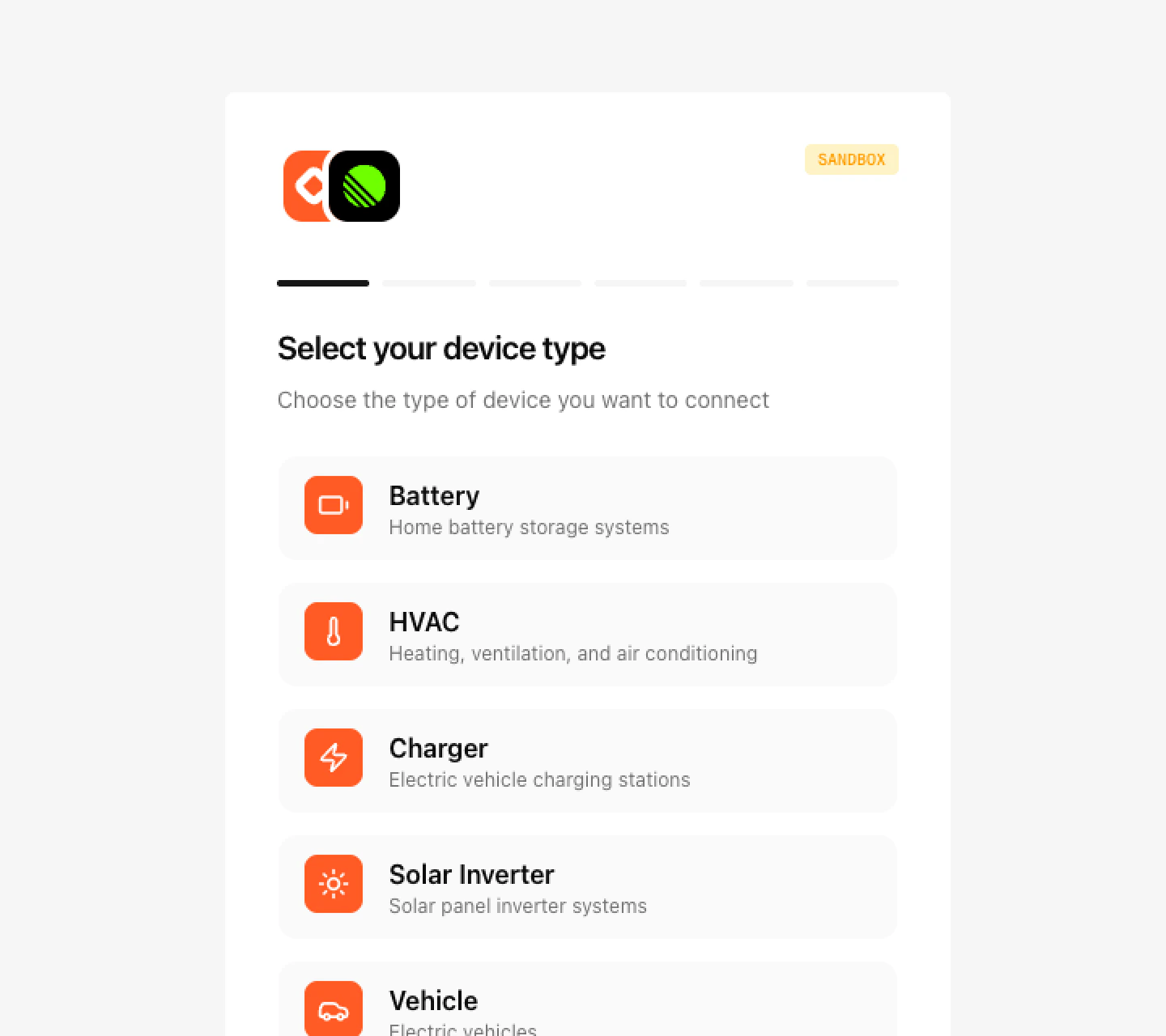
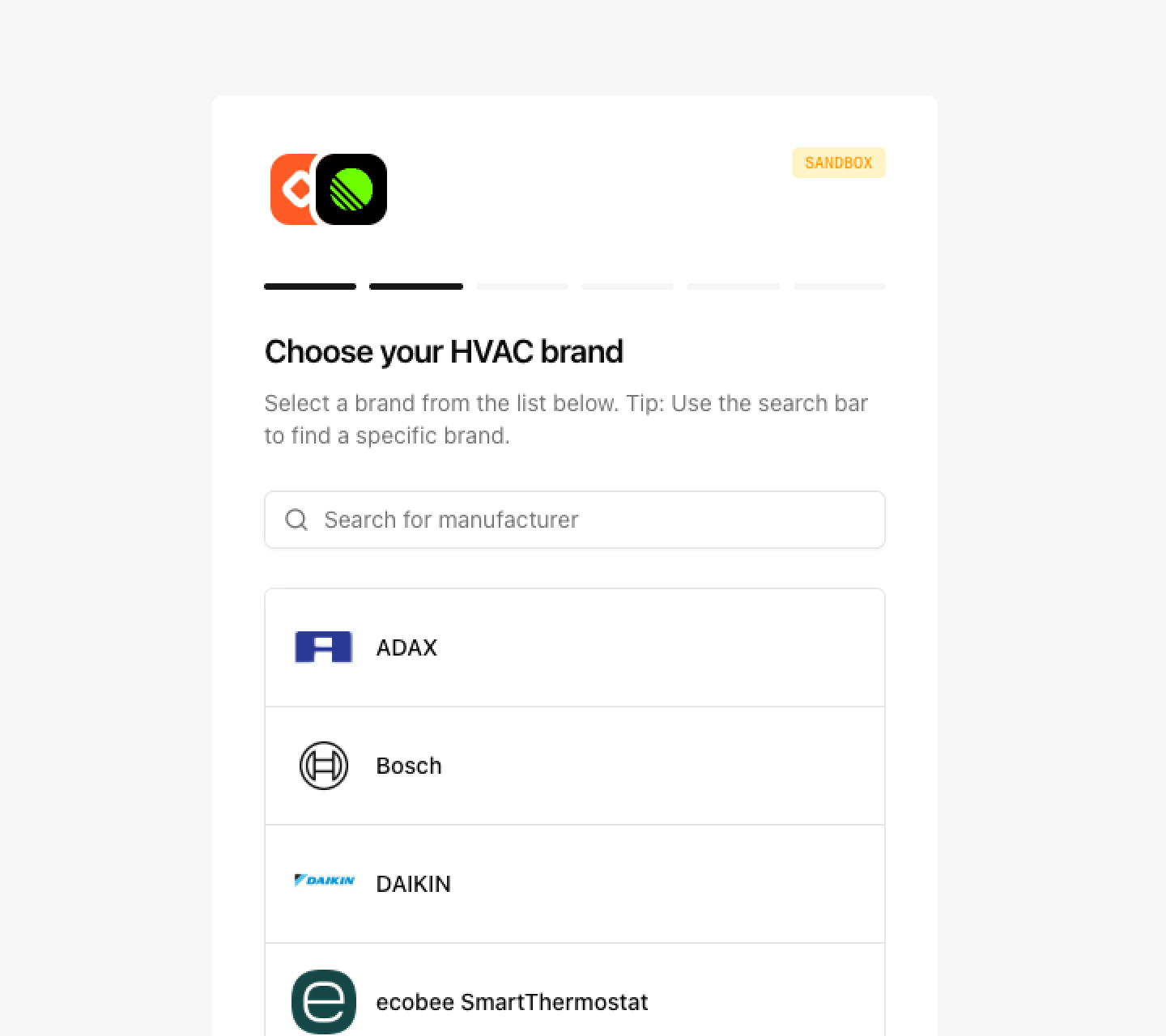
Credential Authentication
Users authenticate using one of three methods supported by the OEM: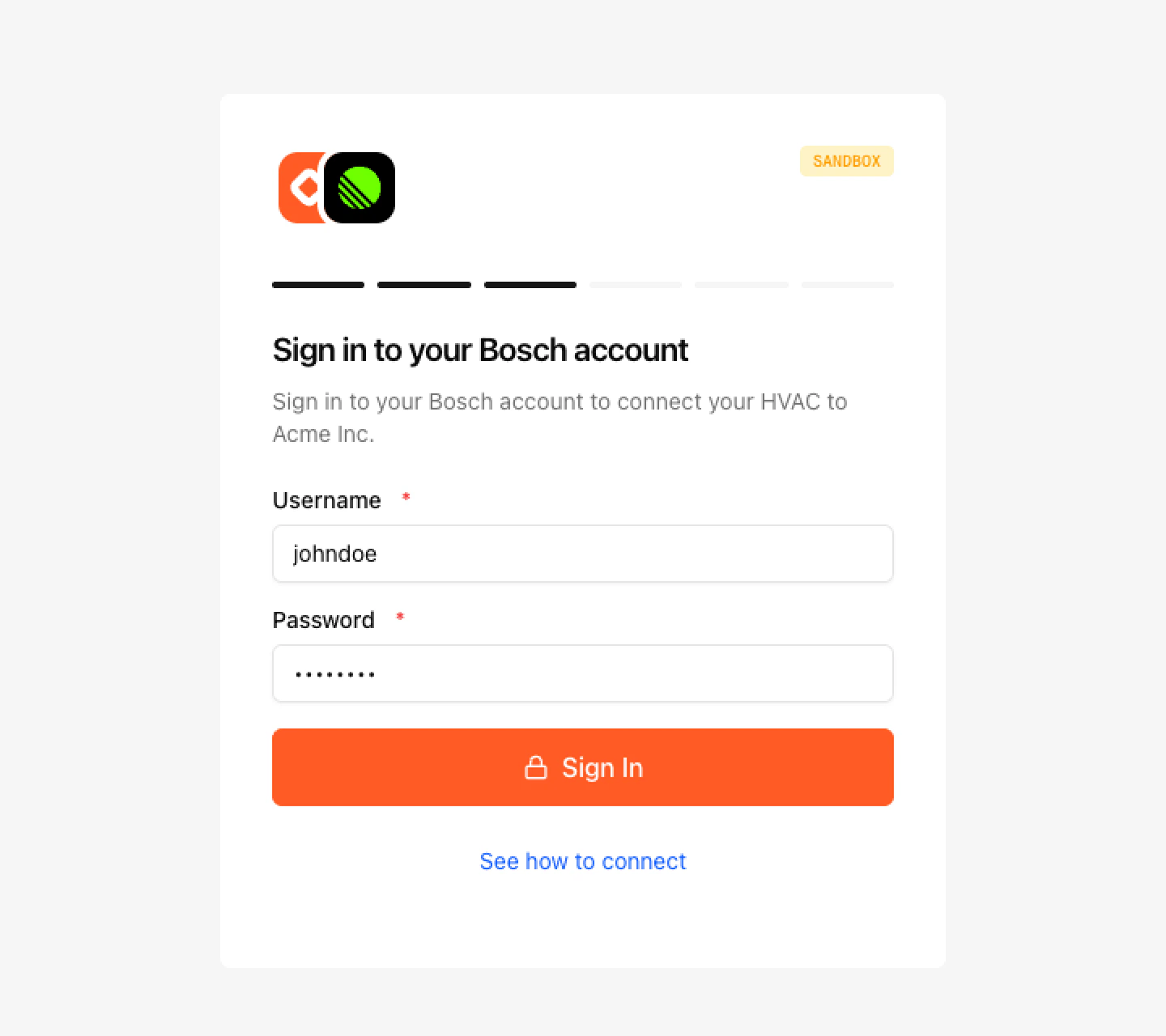
- Username/Password: Traditional login credentials
- API Key: OEM-provided API key
- OAuth2: OAuth flow for supported OEMs
Connection Types
Different OEMs support different authentication methods:Traditional username and password authentication. Users enter their OEM account credentials directly.
API key-based authentication. Users provide an API key issued by the OEM.
OAuth 2.0 flow for supported OEMs. Users are redirected to the OEM’s authorization page.
Integration Options
Direct Link
Direct users to the Link UI URL. After completion, they’ll be redirected back to your application.
Embedded Flow
Embed the Link UI in an iframe within your application (if supported).
What Happens After Connection
Once devices are connected:- Device Registration: Devices are registered to your customer account
- Immediate Access: You can immediately query device data via the API
- Webhook Notifications: You’ll receive
device.connectedwebhook events - Device Management: Devices appear in your dashboard and can be managed via API
Security & Privacy
- Credentials are never exposed to your application
- All authentication happens directly with the OEM
- Users maintain full control over their device connections
- Users can disconnect devices at any time
Reconnection Flow
Users can reconnect devices without re-entering credentials, as long as their credentials remain valid with the OEM.When does reconnection happen?
When does reconnection happen?
Reconnection occurs when:
- A user wants to add more devices from the same OEM
- Credentials need to be refreshed
- Device connection status needs to be verified
What if credentials are invalid?
What if credentials are invalid?
If credentials are no longer valid, users will be prompted to re-authenticate through the full connection flow.
Troubleshooting
User can't find their OEM
User can't find their OEM
Ensure the OEM is supported in your environment. Some OEMs may only be available in sandbox or live environments.
Authentication keeps failing
Authentication keeps failing
Verify that:
- The OEM credentials are correct
- MFA is completed if required
- The OEM account has proper permissions
- The OEM service is not experiencing outages
Devices not showing up
Devices not showing up
Check that:
- The OEM account has devices registered
- Device permissions are granted during consent
- The device type is supported by Amps AI
Next Steps
Link UI Customization
Learn about advanced configuration options
API Authentication
Learn how to authenticate your API requests
Webhooks
Set up webhook endpoints
API Reference
Explore the full API documentation